Long-Term Planning - Advanced
The Long-Term Planning - Advanced screen helps Planners to manage their work. If you have access to the original Long-Term Planning screen you will have automatic access to the Advanced screen if the Shutdown, Turnaround, Outage (STO) feature is enabled.
On this screen, Planners can do the following:
-
Move and confirm strategy task occurrences.
-
Visualise overdue occurrences.
-
Visualise work that must be performed during a shutdown.
-
See whether work that requires a shutdown has been assigned to a shutdown event.
-
Add work to shutdowns.
-
Manage and shift shutdowns and associated work subject to constraints and tolerances.
You can view your work in the grid or on the Gantt chart view. The grid view lists individual occurrences (sequence number = occurrence number).
Occurrences are coloured as follows:
-
Yellow: Can't set the occurrence date.
-
Very Light Grey: Can't set STO Occurrence.
-
Dark Grey: Can set Occurrence.
You cannot drag and drop a column into the Occurrence area.
Individual rows do not need to be selected before they can be assigned to a shut.
The following actions can be performed at the Occurrence level:
-
Multi-Select
-
Set Occurrence Date.
-
Set Occurrence Usage.
-
Set to System Calculated.
-
Set Occurrence STO Number.
-
-
Single-Select
-
As above plus Set Occurrence Details.
-
The following actions can be performed at the Task level.
-
Multi-Select
-
Set Task to Not Reviewed.
-
-
Single-Select
-
Set Task to Not Reviewed.
-
Update Last Task Occurrence.
-
Equipment Utilisation Analyser.
-
Equipment Usage Profile.
-
Equipment Actual Usage.
-
The Gantt chart shows the task as a single line and the occurrences within that line.
-
STO Required on Strategy Task sets bold text,
-
STO Not Required on Strategy Task sets normal text.
See Long-Term Planning for the meaning of the bars on the Gantt chart. Work that must be performed within a shutdown displays in bold text. Any work included in a shutdown has an allocated STO number. Work that is not required to be performed as part of a shutdown (based on asset or work configuration) but has, by the Planner's discretion, been included in the shutdown, will display with an allocated STO number but without bold text.
The screenshot below shows the details displayed when you hover over an STO and an Occurrence.
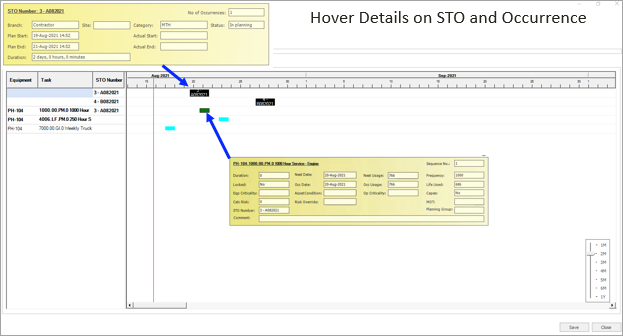
You can right-click an Occurrence and Highlight Linked Occurrences.
Occurrence logic movement scenarios
Scenario 1
Assigning an STO Number to Occurrence where the occurrence date is outside the STO Window
-
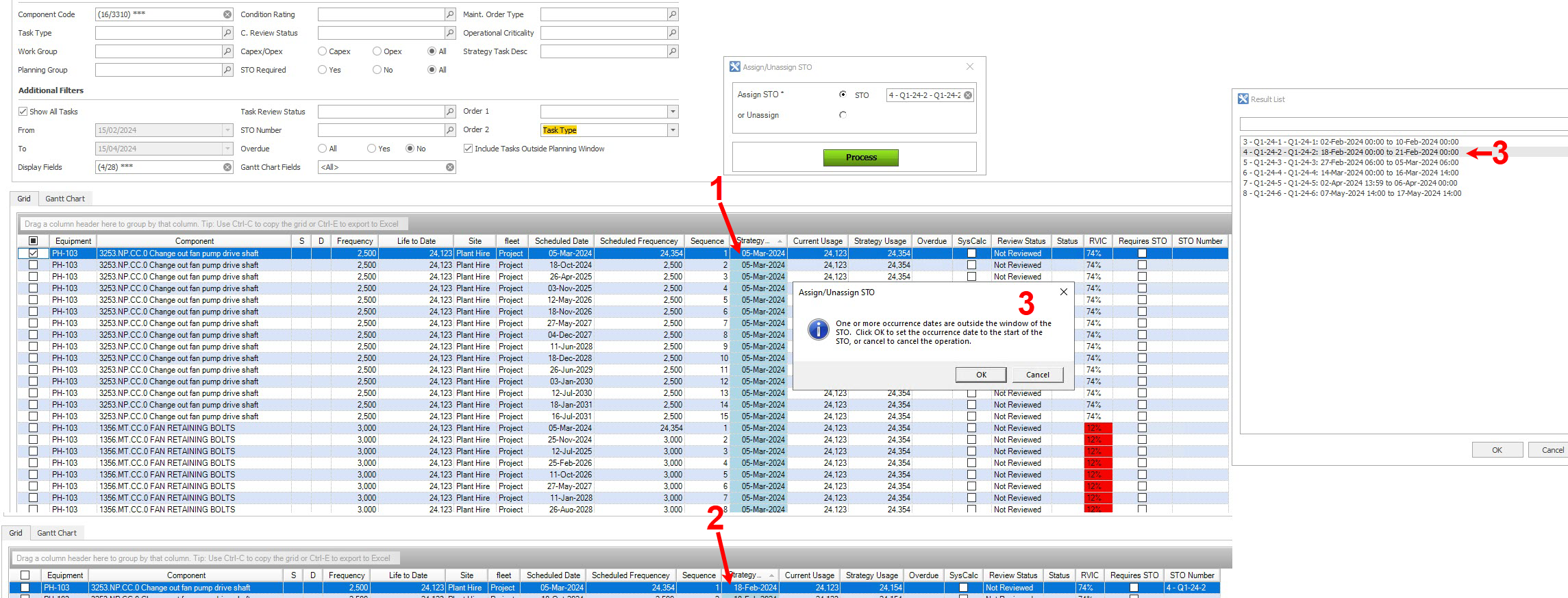
In this scenario, when assigning the STO number to the occurrence, AMT will check if the occurrence can be completed within the STO Period. If yes, the occurrence will be moved with the occurrence start date set to align with the STO Start date.
See the example below, where the Occurrence was originally scheduled on 05-Mar-2024; this is outside the window of the STO (18-Feb-2024 to 21-Feb-2024). Based on the duration of the occurrence, AMT recognises this can be performed and provides the warning.